
A useful Mermaid editor needs three things: an editable text source, a preview that updates quickly, and a safe way to keep the diagram with the document that explains it. Export is helpful, but the .md, .mdx, or .mmd source should remain the version you edit.
Mermaid syntax turns a text definition into a diagram. The first line declares the diagram type, and the lines after it define nodes, relationships, participants, dates, or other elements. That makes diagrams easy to review in a diff and practical to store beside project documentation.
What to look for in a Mermaid editor
| Capability | Why it matters |
|---|---|
| Live preview | Syntax errors appear while the diagram is still small |
| Clear error feedback | You can find the failing line instead of guessing |
| Plain-text source | The diagram remains editable outside one app |
| Markdown support | The diagram can live beside the surrounding explanation |
| SVG or PNG export | You can use a static copy where Mermaid is not rendered |
| Local file access | The source can stay inside the real project folder |
The official Mermaid Live Editor is a strong practice area because its current project supports real-time previews, SVG export, and shareable links. A local document editor answers a different need: keeping the diagram source with the project and the prose around it.
Write a small flowchart
Start with a four-node example. The examples here show editable source; paste them into a Mermaid editor to see the rendered diagram:
flowchart LR
  A[Write source] --> B[Preview]
  B --> C{Looks right?}
  C -->|Yes| D[Keep source]
  C -->|No| A
The first line declares a left-to-right flowchart. Each later line defines a node or connection. The labels in square brackets are visible in the rendered diagram.
Keep node IDs short and stable. You can change Write source without changing the ID A. Stable IDs also make a large diagram easier to revise.
Debug Mermaid syntax without starting over
Mermaid's official syntax reference notes that unknown words and misspellings can break a diagram while some unsupported parameters may fail silently. When the preview stops rendering, use a narrow repair loop:
- Read the first error, not every message after it.
- Check the diagram declaration on line one.
- Comment out the newest lines.
- Restore one line at a time until the failure returns.
- Quote labels that contain punctuation or words with special meaning.
- Test the smallest failing block in a live editor.
For example, the official flowchart guide warns that a lowercase end can break a flowchart. This minimal example is deliberately broken:
flowchart LR
  A[Start] --> B[end]
Quote the label or change the capitalization to repair it:
flowchart LR
  A[Start] --> B["end"]
Mermaid comments begin with %%. Use them to hide one line during debugging without deleting it:
flowchart TD
  A[Input] --> B[Validate]
  %% B --> C[Experimental step]
  B --> D[Output]
If the small block works in the official editor but fails in another app, check which Mermaid version that app ships. Newer syntax may not render in an older embedded version.
Choose the diagram type before adding detail
Use the type that matches the question:
flowchartfor steps, branches, and decisions;sequenceDiagramfor messages between people or systems over time;stateDiagram-v2for allowed states and transitions;classDiagramfor types and relationships;erDiagramfor data entities;ganttfor scheduled work;mindmapfor a branching idea structure.
Do not force an architecture discussion into a giant flowchart if a sequence diagram would explain the interaction more clearly. A smaller diagram with a specific job is easier to maintain than one canvas that tries to contain the whole product.
Keep the diagram beside the document
There are two practical patterns.
Embed the source in Markdown
Use a fenced mermaid block when the diagram belongs to one document. The explanation, diagram source, and review history then travel together.
## Release flow

```mermaid
flowchart LR
  Draft --> Review --> Ship
```
Use a separate source file
Use a .mmd file when the diagram is large, reused, or generated by another tool:
docs/
  architecture.md
  diagrams/
    request-flow.mmd
    request-flow.svg
Treat the .mmd file as the source and the .svg as an export. Update the source first, then regenerate the export. Otherwise the picture and the editable version will drift.
Export without losing editability
SVG is a good default for web documentation because lines and text stay sharp as the image scales. PNG is useful for systems that do not accept SVG or Mermaid source. A share link is convenient for discussion, but it should not become the only copy of a project diagram.
Before sharing or committing an export:
- keep the text source;
- record which source produced the image;
- check text at the final display size;
- verify dark and light backgrounds if the image will appear in both;
- avoid putting private system names into a public diagram;
- test the result in the destination renderer.
Where Fylune fits
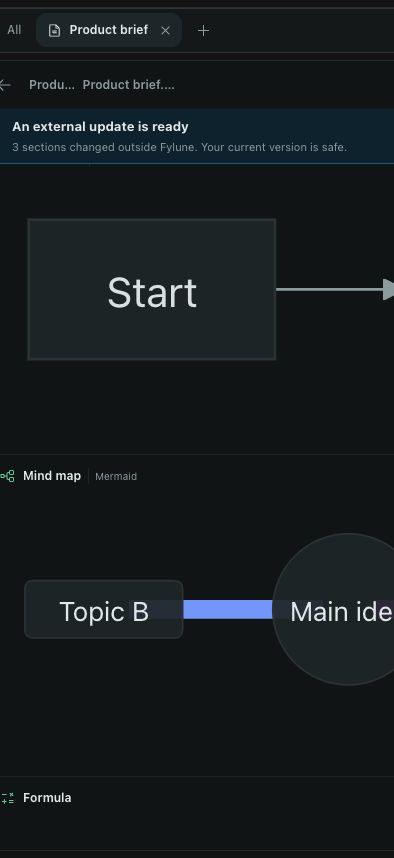
Fylune's feature overview describes a local-first Markdown and MDX workspace for macOS. It opens ordinary project folders, renders Mermaid inside the document experience, and keeps the selected local folder as the source of truth. That makes it useful when the diagram belongs to a product brief, research note, decision record, or README rather than a one-off online canvas.
The useful core works with local files and does not require an account; the privacy page explains the boundaries for optional connected features. Fylune also renders other rich Markdown content such as tables, task lists, formulas, media, and safe MDX blocks. It is not a replacement for a collaborative whiteboard or a specialized visual modeling suite.
Read why local files help when AI joins the team, review the feature overview, or use the download page for the current macOS build.
A simple source-first workflow
- Write one sentence that states what the diagram must explain.
- Choose the smallest matching Mermaid type.
- Build a four-node version.
- Preview and repair syntax before adding style.
- Place the source beside the related document.
- Export only for destinations that need a static image.
- Review the text source in the same change as the prose.
This keeps the diagram useful after the first presentation. Another editor can open the file, a teammate can review the source, and a future change does not depend on finding the original browser tab.
Frequently asked questions
What is the best free Mermaid editor?
The official Mermaid Live Editor is a good choice for learning syntax, quick previews, SVG export, and shareable links. For project documentation, choose an editor that also keeps the source in your real files.
Can Mermaid diagrams live in Markdown?
Yes. Many Markdown renderers support fenced mermaid blocks, though support and Mermaid versions vary. Check the destination before relying on newer syntax.
Should I export SVG or PNG?
Use SVG when the destination accepts it and the diagram needs to scale cleanly. Use PNG for compatibility. Keep the Mermaid source either way.
Why does a diagram work in one editor but not another?
The editors may ship different Mermaid versions or security settings. Reduce the diagram to the smallest failing example and compare supported syntax.
Does Fylune upload my Mermaid source?
Fylune's core editing loop reads and writes the selected local files. Optional cloud services have separate boundaries. Review the current product and privacy information before using any optional connected feature with sensitive content.