

Markdown Collapsible Sections: Details and Summary Blocks
To create a collapsible section in a Markdown file, wrap the optional content in an HTML <details> block and give it a clickable label with <summary>:
<details>
  <summary>Build log</summary>
  The build completed in 42 seconds with no warnings.
</details>
Most Markdown renderers pass these two HTML tags through, so the pattern works in GitHub, GitLab, static site generators, and editors that render safe HTML blocks. The reader sees only the summary line until they click it. This guide covers the exact syntax, the blank-line rule that keeps Markdown inside rendering, default-open behavior, what belongs inside, and where each renderer supports it.
What collapsible sections solve
A collapsible section keeps a document short on screen while the content stays in the file. Common uses:
- Long logs and stack traces after a short problem statement.
- FAQ answers so the question list stays scannable.
- Extended examples that support, but do not block, the main instructions.
- Changelog details where the headline fits in the summary and the notes expand on click.
Because the section lives in the same file, the content stays portable: anyone opening the Markdown in a plain editor still reads everything, and local AI agents that read raw files see it too. Only the rendered view collapses.
The details and summary block
The <details> element opens or closes on click, and <summary> is its visible label:
<details>
  <summary>Click to expand</summary>
</details>
Without a <summary>, browsers show a generic label such as "Details", so always add one.
The blank-line rule. To keep Markdown inside rendering (headings, lists, code fences), leave a blank line after the closing </summary> tag and a blank line before the closing </details> tag. If a heading or list shows up as raw text, a missing line break after </summary> is usually the cause. A widely used gist on collapsible sections documents the same troubleshooting step.
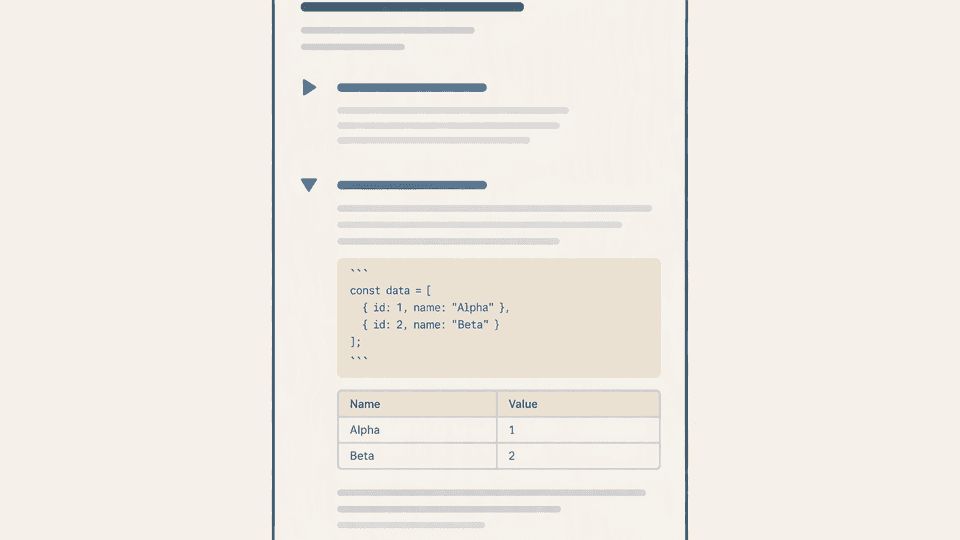
A worked example with a code fence and a table inside:
<details>
  <summary>Run details</summary>
  ### Build output
  ```text
  Compiling 12 modules... done
| Step | Time |
|---|---|
| Compile | 18.2s |
| Test | 9.6s |
Two notes on toggle state:
- The
openattribute sets the initial state only. When a reader clicks, the browser toggles the live state; it does not rewrite the file. - If you want a section visible by default but collapsible,
openis the right tool. If you want content that never renders, use a Markdown comment instead.
Nested Markdown content rules inside details
The indentation and blank-line rules cause most failures in issue threads. Follow these:
- Do not indent content as code. Four-space indentation inside
<details>can be read as a code block. Keep Markdown content flush left. - Leave a blank line after
</summary>. Headings, lists, and fences need it to parse. - Keep the blank line before
</details>. Lists that touch the closing tag can be swallowed. - Nested details work. Each level needs its own
<summary>:
<details>
  <summary>Section A</summary>
  <details>
    <summary>Section A.1</summary>
    Inner content here.
  </details>
</details>
A checklist inside a details block works too, for example an FAQ checklist that expands on click.
Renderer support table
Not every renderer treats HTML blocks the same way. Check your target before committing to collapsible sections:
| Renderer | Details and summary | Notes |
|---|---|---|
| GitHub | Supported | GitHub applies collapse and expand behavior to details elements; Markdown inside renders with the blank-line rule. (discussion) |
| GitLab | Supported | details and summary are on the allowlist; Markdown inside is supported with blank lines before and after. (GitLab docs) |
| Static sites (Jekyll, Hugo, Astro) | Usually supported | Most pipelines pass HTML through; strict sanitizers may strip attributes such as open. Verify with a test build. |
| Typora | Not supported | Typora does not render details blocks; the content shows as raw text. (issue #2570) |
| Obsidian | Reading view differs | Community threads report details blocks do not collapse in Obsidian's reading view. (forum thread) |
| Fylune | Safe MDX blocks render inside the document experience | Fylune renders rich Markdown and MDX, including safe HTML blocks, while your files stay ordinary local documents. (product overview) |
The same renderer spread explains why a "markdown expandable section" query often returns gists and issue threads instead of one canonical guide: the answer depends on where the file renders. Portable files should still read fine in the collapsed-blind editors, because raw Markdown and hidden HTML remain visible in source view.
When not to hide content behind a toggle
A collapsible section trades visibility for compactness. Do not hide:
- Required steps. A reader who skips a collapsed install step does not complete the task.
- Warnings and limits. Safety, licensing, and data-loss caveats should always be visible.
- Key facts searchers scan for. If most visitors need one sentence, keep it outside the toggle.
- Content agents must act on. Hidden does not mean removed: agents reading raw files see it, but the rendered view hides it from skimming humans.
Use collapsible sections for supporting depth, not for information the reader must act on.
Quick reference
- Basic:
<details><summary>Label</summary>content</details> - Default open:
<details open> - Markdown inside: blank line after
</summary>and before</details> - Inside: code fences, tables, lists, images, and nested details
- Never: required steps, warnings, or facts every reader needs
Organize long notes in Fylune
Fylune is a local-first document workspace for Markdown, MDX, and images. Long notes with logs, FAQ blocks, and extended examples stay ordinary files on your disk, while details blocks render inside the document experience. Download Fylune for macOS and keep working notes, research logs, and docs in one calm workspace.
Sources
- How to add a collapsible section in Markdown (gist): blank-line rule and
openattribute - Collapsed block for GitHub Markdown (codex.so): code, tables, and images inside details
- Hacker News discussion: GitHub applies collapse and expand behavior to details elements
- GitLab Flavored Markdown docs:
detailsandsummaryon the HTML allowlist - Typora issue #2570 and Obsidian forum thread: renderer failures that motivate the support table
- Fylune product overview (
docs/product-overview.md): safe MDX blocks render inside the document experience