
How to Add a Link in Markdown: Inline, Reference, and File Links
To add a link in Markdown, wrap the link text in square brackets and put the destination in parentheses immediately after it, with no space between the two parts:
[Fylune](<https://www.fylune.com>)
That inline form is all most documents need. Two more forms earn their keep once your files live in a real project folder: reference-style links, which move destinations to definition lines elsewhere in the file, and relative file links, which point at sibling documents with paths such as ../notes/spec.md. This guide covers the Markdown link syntax for all three, plus the anchor and broken-path checks that generic syntax guides usually skip.
Three link types, and when each one fits
| Form | Syntax | Best for |
|---|---|---|
| Inline | [text](url) | One-off links to web pages; the default choice |
| Reference-style | [text][label] plus a [label]: url definition line | The same destination repeated many times in one document |
| Relative file link | [text](../notes/spec.md) | Linking documents, images, and folders inside one project folder |
The file link is the type that breaks quietly. A web link either opens or shows an error, but a file link depends on where the linking file sits on disk. The Docusaurus documentation draws the same line between URL paths and file paths, and recommends relative file paths because they keep working on GitHub and in many Markdown editors, survive slug changes, and stay correct across doc versions (Docusaurus, Markdown links). A simple rule follows from that: inline for the web, reference-style when one URL repeats, relative file paths for anything inside the folder.
Inline links: text
Enclose the link text in brackets, then follow it immediately with the destination in parentheses. An optional title in quotes after the destination appears as a tooltip on hover (Markdown Guide, Links; AnVIL, Creating Links in Markdown).
See the [download page](<https://www.fylune.com/download>).
[Fylune](<https://www.fylune.com>)
To make a bare URL the link text itself, wrap it in angle brackets:
<https://www.fylune.com>
Some renderers turn a bare, unwrapped URL into a link automatically, but that behavior is an extension, not core Markdown. The angle-bracket form is the portable way to link a URL as its own text.
Reference-style links
A reference-style link has two parts: a short label inline with your text, and a definition line that holds the destination (CommonMark tutorial, Links).
The [spec][spec-doc] and the [minutes][minutes-doc] cover the rest.
[spec-doc]: ../notes/spec.md
[minutes-doc]: notes/minutes.md
You can place definition lines right after the paragraph where the link appears, or group them at the bottom of the file like endnotes (Markdown Guide, Links).
Reference-style links pay off when the same destination appears many times: change one definition line instead of hunting through the whole document. They also keep long URLs out of your prose, which matters when people and AI agents read the raw file.
One caveat the generic guides leave out: a definition line does not make a relative path more portable. The destination is resolved the same way as an inline destination, so if the file moves, the definition line needs the same fix.
File and relative links
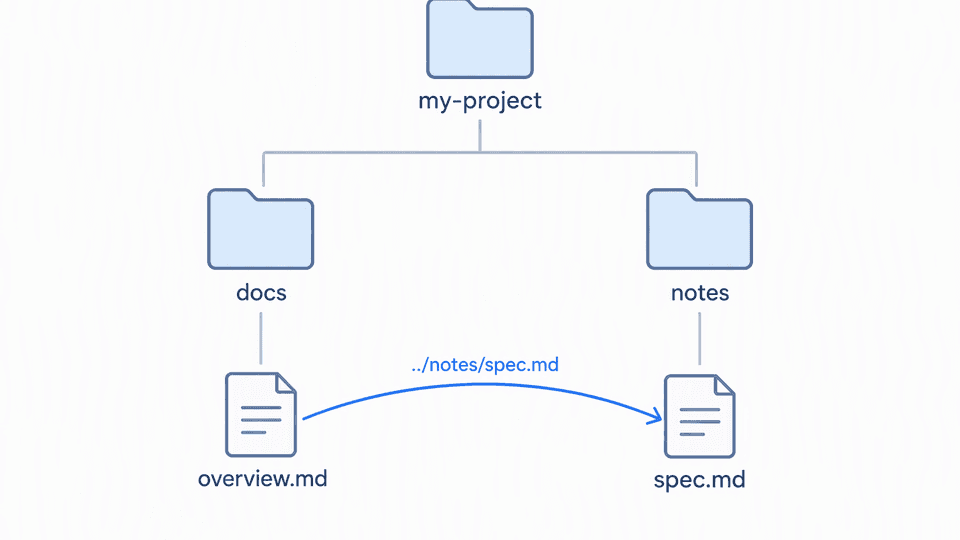
The key rule: a relative path resolves against the directory of the file that contains the link, not against the project root (Docusaurus, Markdown links).
my-project/
  docs/
    overview.md
  notes/
    spec.md
From docs/overview.md, the link needs one step up and then into notes/:
[Product spec](<../notes/spec.md>)
From a file at the project root, no step up is needed: [Product spec](notes/spec.md).
Three portability rules keep these links working:
- Keep the linking file and its target inside the same project folder. Move the whole folder and every relative path inside it survives.
- Never write absolute local paths such as
/Users/you/notes/spec.md. They break on every other machine. - A leading slash points at a site root on hosted documentation sites, not at your folder; Docusaurus flags links like
/docs/target.mdxas less portable for exactly that reason.
Same-document anchors
To jump to a heading in the same document, link to its slug: [Back to the top](#three-link-types). There is no single Markdown standard for heading IDs. GitHub-style renderers lowercase the heading, strip punctuation, and join words with hyphens; other renderers keep or drop different characters, and some require an explicit HTML anchor. That is why forum threads on linking within one page keep circling back to renderer-specific rules and anchor workarounds (Reddit r/Markdown).
Practical check: generate the anchor in the renderer your readers actually use, click it once, and fix the slug there before the document ships.
Troubleshooting: broken links and their fixes
| Symptom | Likely cause | Fix |
|---|---|---|
| The raw brackets show up in the rendered output | A missing closing bracket or parenthesis, or a space between ] and ( | Rebuild the link as [text](<url>) with no space between the two parts |
| The link opens a wrong or empty URL | Unencoded spaces in the destination | Encode spaces as %20, or wrap the destination in angle brackets: [doc](<my file.md>) |
| A URL containing parentheses breaks mid-link | The parenthesis ends the destination early | Encode them as %28 and %29, or wrap the destination in angle brackets |
| A file link worked yesterday and fails today | The target moved relative to the linking file | Rewrite the path from the linking file's new directory |
| An anchor link works on one site but not another | Heading ID rules differ by renderer | Match the target renderer's slug rules or add an explicit anchor |
The %20 and %28/%29 encoding guidance comes straight from the Markdown Guide's link best practices, which note that Markdown applications do not agree on how to handle spaces or parentheses in the middle of a URL (Markdown Guide, Links). CommonMark also accepts destinations wrapped in angle brackets, so [doc](<my file.md>) keeps spaces intact wherever CommonMark behavior is supported.
If your documents mix links with tasks and checkboxes, the sibling guide How to Make Checkboxes in Markdown covers that syntax job.
Check your links against the project folder
A link that parses is not a link that works. Run this four-step check on any document with file links:
- Open the document in the app where readers will see it, and follow every link once.
- For file links, confirm the target opens from the linking file's own location, not from the project root you happen to be thinking of.
- Move the whole project folder once, then follow the links again. A healthy relative path survives the move untouched.
- Fix any broken path from the linking file's directory, counting
../steps from there.
Fylune keeps this check local. The selected project folder stays the source of truth, the core editor works offline without an account, and pasted assets are stored with portable relative references. That means the relative path inside a file link is the same path Finder, Git, and your AI agents resolve, because they all work on the same ordinary files. A document that renders correctly inside Fylune keeps its links when it leaves the app. If you want the background on that design, see Why local files win when AI joins the team.
Fylune is available for macOS 14 or later as a direct download at fylune.com/download; Windows is coming soon. Try it with your own project folder and run the four-step check on a real document.
FAQ
How do I create a hyperlink in Markdown?
Enclose the link text in brackets and the destination in parentheses: [Fylune](https://www.fylune.com). Add a quoted title after the destination for a hover tooltip, or wrap a bare URL in angle brackets to make the URL itself the link text.
How do I create a local link in Markdown?
Use a relative path from the file that contains the link: [Spec](../notes/spec.md). The path resolves against the linking file's directory, so a document in docs/ reaching a file in notes/ needs the ../ step. Encode spaces as %20 or wrap the destination in angle brackets.
What is a Markdown link?
A Markdown link is a label plus a destination written as [label](destination). A Markdown renderer turns that pair into an HTML anchor: the label becomes the clickable text and the destination becomes the href. If you are working out how to make a link in Markdown for the first time, the inline form above is the one to learn.
Sources
- Markdown Guide, Basic syntax: Links (source file): inline syntax, titles, autolinks, reference-style structure, space and parenthesis encoding.
- AnVIL, Creating Links in Markdown: brackets-and-parentheses syntax.
- CommonMark tutorial, Links: inline vs reference-style links.
- Docusaurus, Markdown links: URL paths vs file paths, relative resolution, portability guidance.
- Stack Overflow, Display link URL in Markdown: reference-style link display and wrapping behavior.
- Reddit r/Markdown, linking to another place in the same page: same-document anchors across renderers.
- Markdown Guide, Basic syntax: adjacent syntax context.