
How to Fill Out a PDF Form Online and Check the Download
To fill out a PDF form online, do four things in order: confirm the form actually has fillable fields, enter your answers in a tool that supports that form type, download the result, and check that copy before you sign or send it. The download check is the step most people skip, and it is where small mistakes become real problems, because a saved PDF is not the same as a signed PDF, and a saved PDF is definitely not a submitted one.
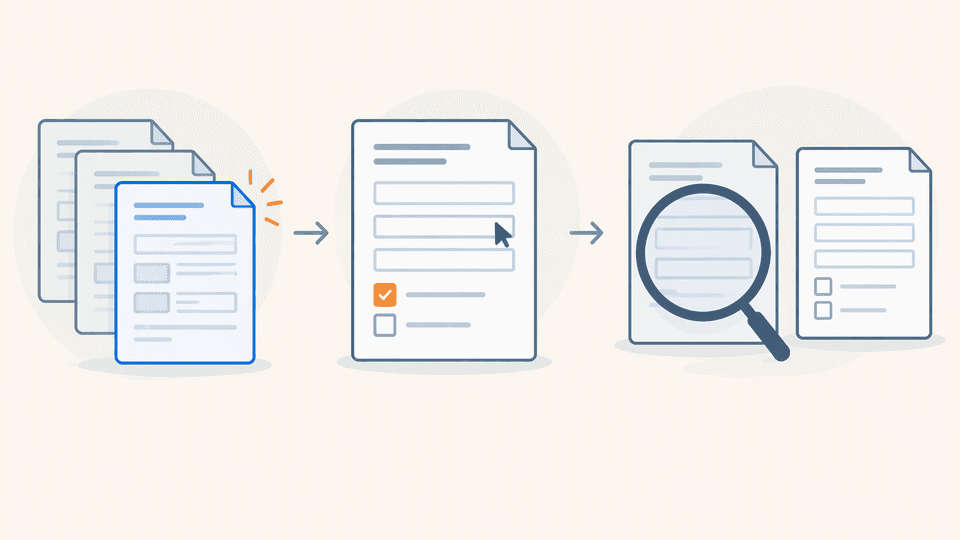
Choose a filling route before entering personal details
Not every "PDF form" is the same thing. Before you type your name or address anywhere, spend a minute deciding which route fits your file:
| Your file | What it is | Sensible route |
| --- | --- | --- |
| Official agency template hosted as a supported online form | A blank form the agency itself publishes and lets you complete in the browser | Fill it in the browser tool that hosts the template, download, inspect |
| A fillable PDF you already have (fields highlight when you click) | An interactive AcroForm PDF | Open it in a PDF tool that supports fillable fields, complete and save |
| A flat PDF (nothing highlights when you click) | A scanned or flattened page with no live fields | You cannot type directly; see the last section for workarounds |
Two quick checks before you commit:
- Pointer check. Open the form and move your cursor over it. If the cursor changes to a text-entry bar or the field highlights, you are looking at a fillable form. If nothing changes anywhere, you probably have a flat form.
- Provenance check. Ask where the file came from. The safest fillable file is the current blank from the issuing agency itself, not a copy someone emailed you.
Adobe's own documentation on PDF form basics describes the difference between fillable forms and flat documents, and it is worth reading if you are unsure which one you have.
Start with the issuing agency's current blank form
If the form you need is a government form, start at the agency's website rather than a copy you found elsewhere. Agency sites publish the current revision of each blank and usually state what the form is for. Two reasons this matters:
- Current revision. Old copies of a form circulate forever, and an outdated revision can be rejected when you file.
- No eligibility inference. A blank form is just a blank form. Seeing a specific form published does not mean you qualify for the thing it applies to, and a filling tool cannot tell you whether you do.
For example, California's Application for Replacement or Transfer of Title is form REG 256, published by the California DMV, with the current revision date printed on the form itself. The DMV's title transfers and changes pages explain what the form is for, and the blank is available directly from the DMV as REG 256 (PDF).
Fylune's REG 256 template hosts that same official DMV blank so you can complete it in the browser. It is a supported official template, which is the first row in the table above.
Fill a supported official template in the browser
Once you have confirmed you are working with a supported fillable form, filling it usually follows the same shape:
- Open the form in a tool that supports it. On Fylune's REG 256 template page, the blank loads in your browser and you can start typing; no sign-in is required.
- Enter your answers field by field. Click each field and type. Manual entry is the only supported method: Fylune does not currently support uploading an existing PDF, OCR of scans, or XFA-based forms.
- Proofread as you go. Print names exactly as they appear on supporting documents. A middle initial that does not match your ID is a common reason agencies send a form back.
- Download the result. When you finish, download the completed PDF. On Fylune's free plan the download includes a small watermark, and removing the watermark is a paid option.
- Do not treat the download as a signature. Typing your name into a name field does not sign a form, and Fylune does not provide e-signature tools. Where a wet signature is required, print and sign by hand, exactly as the issuing agency instructs.
If you would rather use local desktop software, Adobe's fill and sign documentation covers the equivalent workflow in Acrobat, and Acrobat Reader can fill many fillable PDFs at no cost.
Understand what free includes
Free filling has boundaries, and knowing them in advance is easier than discovering them at the download step:
| What you want | Free cost | Notes |
| --- | --- | --- |
| Complete a supported template manually in the browser | Free, no account needed on Fylune | Manual entry only; no upload, OCR, or XFA support |
| A downloaded, completed copy | Free, with a watermark | The watermark is visible on the output; agencies may or may not accept it |
| A copy without the watermark | Paid | Removing the watermark is a paid option on Fylune |
| The official blank form itself | Free, direct from the agency | The California DMV offers the REG 256 blank as a free download |
The watermark question deserves its own sentence: a watermarked copy is fine for drafts, practice runs, and checking your answers, but before you send anything official, either pay for the unwatermarked copy or confirm that the receiving agency accepts the watermarked version. When in doubt, ask the agency.
Download, reopen and inspect the result
Before you sign or send a completed PDF, reopen the downloaded file and check it. A quick seven-item checklist:
- Open the downloaded file, not the browser preview. Browser previews and saved files are not always identical.
- Check every field you filled. Confirm each answer appears where you intended it, with nothing clipped, cut off, or overlapping a border.
- Check for clipped text. If a long answer is cut off at the edge of a field box, shorten it or write it as the form's printed instructions allow.
- Check page two. Multi-page forms often have headers, footers, or signature blocks on later pages that are easy to miss.
- Check that the signature line is still blank. If the form requires a wet signature, it should still require one after filling. Saving a PDF does not sign it.
- Keep a reference blank. Download or save a copy of the unfilled official blank so you can compare revisions and re-fill later if you make an error.
- Remember that saving is not submitting. A downloaded PDF sits on your disk. Filing a form with the DMV or another agency is a separate step, and on Fylune downloading the completed form does not submit it to anyone.
If the form will not accept typing
If clicking does nothing and the pointer never changes, you are likely in one of three situations:
- Flat form. The PDF is a scan or a flattened page with no live fields. You cannot type into it directly. You can print it and complete it by hand, or check whether the issuing agency offers a fillable version of the same form. Adobe's guidance on forms that cannot be filled or saved walks through the common causes.
- Restricted permissions. Some PDFs are marked so that editing is not permitted, regardless of which tool you use. The practical answer is usually to get the form from the source: the issuing agency's current blank will be fillable and unrestricted.
- XFA form. Older government and enterprise forms sometimes use XFA technology, which browser-based fillers commonly do not support. Adobe's notes on XFA forms explain the limitation, and the practical answer is the same: use Acrobat, or ask the agency for a current AcroForm version of the blank.
None of these are failures on your part; they are properties of the file. The fastest fix in all three cases is usually to go back to the agency and get the current blank.
Questions about filling, cost and submission
Can I fill out a PDF form for free? Yes, in two senses. You can fill a supported official template manually in the browser for free, with no account needed, and the downloaded copy is free with a watermark on Fylune's free plan. The watermark-free copy is a paid option. Separately, the official blank form itself, such as the DMV's REG 256, is always free to download from the agency.
What if I cannot click the fields in my PDF? Your PDF is probably flat, restricted, or XFA-based. None of these can be fixed by a browser filler. Print and complete by hand, or get the current fillable blank from the issuing agency. The Adobe help pages linked above explain each case.
Does downloading a filled form submit it to the agency? No. Saving or downloading a completed PDF only creates a file on your device. Submitting it to the DMV or another agency is a separate step you take yourself, following the agency's own filing instructions.
Ready to fill a real form?
If you need the California DMV's Application for Replacement or Transfer of Title, you can complete the official REG 256 blank in the browser on Fylune's REG 256 template - free, no sign-in, with a watermarked download you can inspect using the checklist above.
This article is general information about filling forms, not legal advice, and not a statement about whether any specific form or filing is appropriate for your situation. Always follow the instructions published by the agency that issued the form.
Sources
- Adobe, "Fill and sign PDF forms," https://helpx.adobe.com/acrobat/using/fill-and-sign.html
- Adobe, "PDF forms basics," https://helpx.adobe.com/acrobat/using/pdf-forms-basics.html
- Adobe, "Troubleshoot PDF forms" (cannot fill or save), https://helpx.adobe.com/acrobat/kb/cant-fill-in-or-save-pdf-form.html
- Adobe, "XFA forms," https://helpx.adobe.com/acrobat/kb/xfa-forms.html
- California DMV, title transfers and changes, https://www.dmv.ca.gov/portal/vehicle-titles-and-registration/title-transfers-and-changes/
- California DMV, REG 256, Application for Replacement or Transfer of Title (blank PDF, revision 8/2008), https://www.dmv.ca.gov/portal/uploads/2020/01/reg256.pdf